
How-to guide
How to Make a KDA Firestarter AI Dance Video From One Photo
How to make a KDA Firestarter AI dance video: prepare one photo, choose 9:16 or 21:9 and a quality, generate, review the clip and download the MP4.
8 min read · Last updated: 2026-10-22
Written by the KDA Firestarter Dance team. We rendered this template ourselves, at 9:16 and 720p from a head-to-toe photo of an original character: a render took about four and a half minutes and both attempts kept the face, the hair and the clothes.
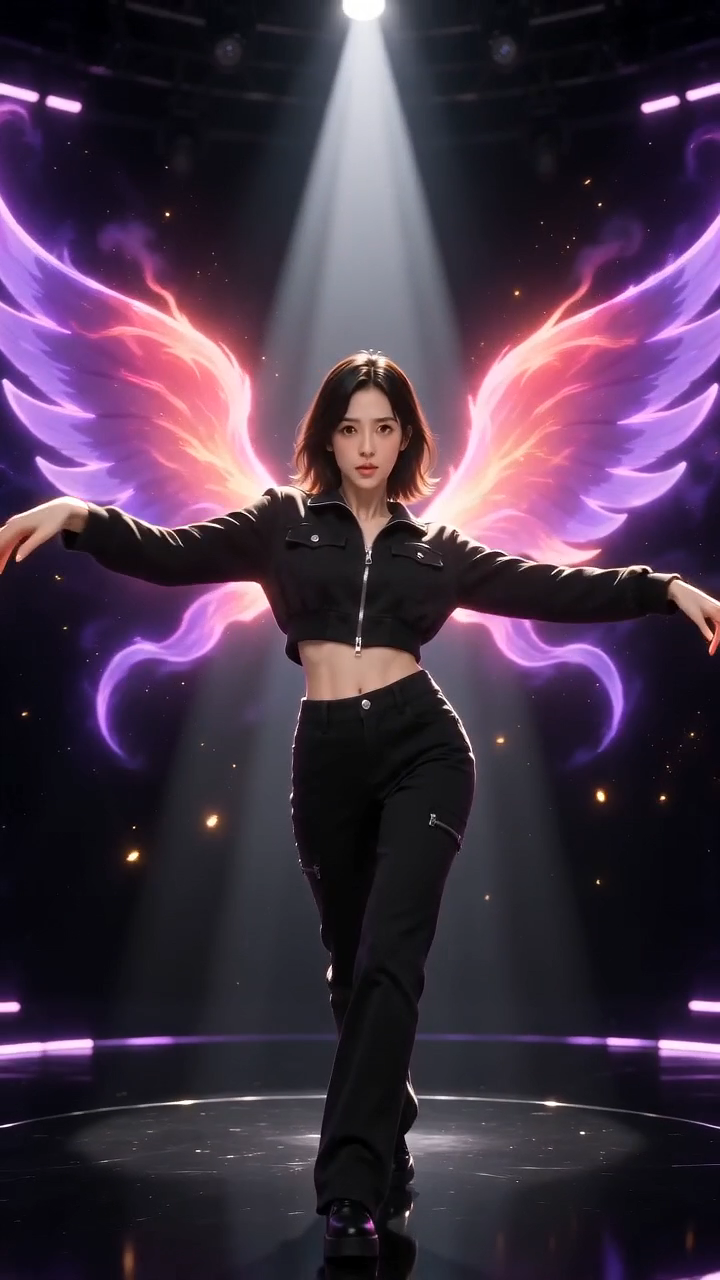
You can make a KDA Firestarter AI dance video from one photo without recording any choreography. Upload a clear photo, choose 9:16 or 21:9 and 480p or 720p, and the built-in template makes a 12 second dance with the song, ready to download as an MP4 in about four to five minutes.
Key points
- You need one clear photo of an adult who agreed, or of an original character you may use. Head-to-toe photos work best.
- There is nothing to write: the Firestarter template, the song and the timing are built in.
- A video costs 10 credits at 480p or 20 credits at 720p, from a one-time pack. Failed renders are refunded automatically.
What do you need to make a KDA Firestarter AI dance video?
You need three things: a photo, a frame and a quality. The photo should show one subject with a clear face, good light and space around the arms and feet. A sharp, evenly lit photo is a better starting point than a dramatic one with an obscured face. JPG, PNG and WebP files work, each side over 300 pixels, and large photos are shrunk for you.
The template is inspired by Kai’Sa’s solo in K/DA’s FIRESTARTER. It does not copy any footage. It uses a fixed silent movement reference and plain-language prompt, and the AI performs the moves with your subject: a spotlight entrance, a close-up body roll, voguing hand frames, three sharp hits on the "Beat Drop Beat Beat Drop" line, a fast turn and a fierce finish.
- 1
The spotlight entrance
Steps out of the dark and opens both arms wide
- 2
Voguing hand frames
Crossing wrists and sweeping arms, new pose on every beat
- 3
Three hits on the beat drop
Sharp frozen poses with a snap of the shoulders and hips
- 4
Turn and finish
A quick turn, a close-up and a final frozen pose
How do you make one, step by step?
There are three steps, and none of them involves writing anything.
Add one clear photo
Pick one subject, face visible, with room around the arms and feet. Confirm that you have permission to animate the photo and that any real person shown is an adult who agreed. Choosing and previewing a photo is free.
Choose a frame and a quality
Choose 9:16 for a tall frame or 21:9 for an ultrawide one, then 720p for a sharper video or 480p for half the credits. The cost is shown before you generate.
Generate and download
Sign in, buy credits if you need them, and press Generate once. Follow the progress on the page or in My videos, then download the finished MP4.
Learn and film the dance
Authentic, but slow
- You practise the routine for hours
- You need space, light and several takes
- You edit the music in yourself
Use the built-in template
One photo, no filming
- The moves are already described and tested
- Pick a frame and a quality, then generate
- The song excerpt comes with the video
Should you choose 9:16 or 21:9?
Choose by where the video will play, not by quality. 9:16 is the tall frame of a phone feed, and the dancer is shown head to toe. 21:9 is an ultrawide frame, wider than ordinary 16:9 video, with more empty stage beside the dancer for arm sweeps. Both cost the same credits, and an ultrawide clip will be cropped heavily if you play it full screen on a phone.
| Frame | Shape | Best for |
|---|---|---|
| 9:16 | Tall | TikTok, Reels, Shorts and phone viewing |
| 21:9 | Ultrawide | Wide players, edits and desktop viewing |
Pick the frame before you generate. Changing it afterwards means a new render, because the AI composes the dancer for the shape you chose.
What does it cost?
You buy credits once. There is no subscription and credits never expire. A 12 second video costs 10 credits at 480p or 20 credits at 720p.
| Credit pack | Price | What it buys |
|---|---|---|
| 20 credits | $6.99 | 1 video at 720p, or 2 at 480p |
| 50 credits | $14.99 | 2 videos at 720p, or 5 at 480p |
| 120 credits | $29.99 | 6 videos at 720p, or 12 at 480p |
If a render fails or the photo is rejected by the safety filter, the credits go back to your balance automatically. A pack can be refunded in full within 7 days of purchase if none of its credits have been used. See the Refund Policy and the pricing page.
What happens while the video renders?
Pressing Generate takes the credits for your quality up front and sends your photo, the frame you chose, the fixed prompt, the fixed silent movement reference and the song reference to the AI video provider. The page then shows a progress state, and you can close the tab: the work runs on the provider's servers and on ours, not in your browser.
A 480p render usually takes about four minutes and a 720p render about five, depending on how busy the queue is. When the provider finishes, our server downloads the clip, adds the sound, stores the finished MP4 and puts it under My videos. If the provider rejects the job, because of the safety filter, its copyright check or a fault, the credits go back to your balance without you asking. If the copyright check is what rejected it, we retry once on our own before refunding.
- 1
Credits taken
The price of your quality is reserved when you press Generate
- 2
Render
About 4 to 5 minutes on the provider, no need to keep the tab open
- 3
Sound added
Our server adds the sound track and stores the MP4
- 4
Ready
Download from the page or from My videos
Press Generate once. Only one render per account can run at a time, so a second press while the first is running is refused rather than charged.
How do you check the finished clip?
Watch the whole video, not just the first frame. Look at the face from start to finish, then at the hands, the fast turn and the close-ups, and check the edges of the frame for cropped arms or feet. Download the MP4 and play that file to check the picture and the sound together.
What mistakes cost the most credits?
Most wasted renders come from the photo, not from the settings. In our own tests the first attempt from a clear head-to-toe photo kept the face, the hair and the outfit, so the cheapest fix for a bad result is almost always a better photo.
| Mistake | What you see | What to do instead |
|---|---|---|
| A tightly cropped photo | Legs and feet are invented and can look wrong | Use a head-to-toe photo with space around it |
| Several faces in the photo | Faces mix or the wrong person dances | Crop to one person before you upload |
| A dark or blurry photo | The face drifts during the turn and the close-ups | Use sharp, evenly lit, front-facing light |
| Choosing 21:9 for a phone feed | A strong crop when played full screen | Choose 9:16 for phones, 21:9 for wide players |
| Paying for 720p before a test | Credits spent on a photo that was never going to work | Try 480p first, then 720p for the keeper |
A sensible routine is to try one photo at 480p for 10 credits, look at the whole clip, and only then spend 20 credits on 720p for the photo you like. A 480p render shows less fine detail, so judge the face and the framing, not the sharpness.
How do you post it?
Download the MP4, play that file once to check the picture and the sound, and then upload it as it is. A 9:16 clip fills the screen on TikTok, Instagram Reels and YouTube Shorts. Name the trend in the caption, tag any friend who is in the video, and switch on each platform's AI-generated label.
The sound in the file is included for personal sharing only. If a platform mutes it, claims it or removes the video because of the music, pick a sound from that platform's own library instead, which the platform has already licensed. For ads or any business use, replace the sound with music you have the right to use.
Make your own KDA Firestarter dance video
Upload one photo, choose a frame and a quality and see the price before you generate. Failed renders are refunded automatically.
Make my video →Frequently asked questions
- Do I need to dance or write a prompt?
- No. Your photo supplies the subject and a built-in template supplies the movement. There is no prompt box and no reference-video upload: you choose the photo, the frame and the quality.
- How long does it take?
- About three minutes at 480p and about four at 720p, depending on how busy the queue is. You can close the tab, and the finished video waits in My videos.
- How much does one video cost?
- A 12 second video costs 10 credits at 480p or 20 credits at 720p, in either frame. Credit packs start at $6.99 for 20 credits, with no subscription and credits that never expire.
- What if the result is not right?
- Check one concrete problem, such as a cropped limb or a blurry face, and change the photo or the frame before you try again. A render that fails returns its credits automatically; a delivered video that is simply not to your taste does not.
- Is this an official K/DA tool?
- No. It is independent and not affiliated with or endorsed by Riot Games, K/DA or the artists behind FIRESTARTER. The song in each video remains subject to the rights of its owners.