
Photos and troubleshooting
KDA Firestarter Dance Photo Guide: Choose a Photo and Fix Common Problems
Choose the best photo for a KDA Firestarter AI dance video and fix common problems: face visibility, body framing, upload formats and distorted results.
7 min read · Last updated: 2026-10-22
Written by the KDA Firestarter Dance team. We rendered this template ourselves, at 9:16 and 720p from a head-to-toe photo of an original character: a render took about four and a half minutes and both attempts kept the face, the hair and the clothes.
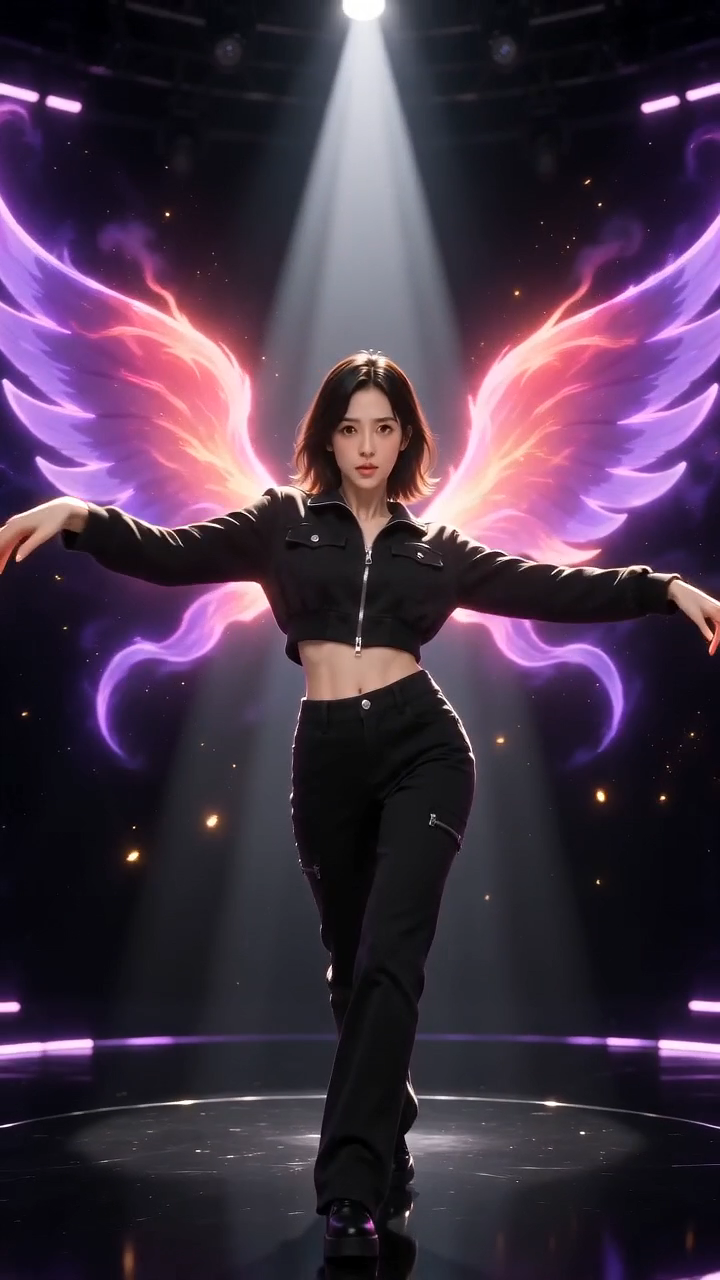
The best photo for a Kai’Sa-style AI dance shows one subject head to toe, with a clear face, even front-facing light and space around the arms and feet. The photo decides most of the result, so it is worth ten seconds of checking before you spend credits.
Key points
- One subject, a sharp face and even light matter more than anything else.
- Head-to-toe photos give the dance the most information. Leave space around the arms and feet.
- If a result looks distorted, change the photo first, not the settings.
Which photo works best for the Firestarter dance?
A dance needs a body, so the best photos show the whole person or character: the outfit, the legs and a clear silhouette as well as the face. Choose a sharp photo taken in even light, facing the camera, with nothing covering the face. Original character art works too when you have the rights to use it, and it is best when the character is drawn in a simple, readable pose.
| Photo | Works well | Works badly |
|---|---|---|
| Subjects | One person or character | Groups or several faces |
| Light | Even, front-facing light | Dark scenes, harsh shadows, flash glare |
| Framing | Head to toe, room around the arms | Cropped heads or hands at the edge |
| Clarity | Sharp, little compression | Motion blur, heavy filters |
| Face | Clear and unobstructed | Sunglasses, masks, hands over the face |
What should the framing look like?
Leave room. The dance swings the arms wide and drops low, and the AI needs space in the photo to understand where the body ends. A photo cropped tightly around the head or the shoulders gives it nothing to build the rest from, and a pose with the arms folded or hidden behind the body hides the hands the template wants to use.
Stand back, or crop wide
Show the person from head to toe if you can, or at least to the knees, with a little empty space on both sides.
Face the camera
A front-facing pose with the arms slightly away from the body is easiest to animate. Extreme angles and turned-away poses are harder.
Check the edges
Make sure no hand, foot or hair is cut off by the edge of the photo.
Which photos cause problems?
Group photos and photos with several faces are the most common problem: the dance has one subject, and extra people get mixed into the movement. Photos taken in the dark, with strong filters or with the face partly hidden also lose the detail the AI needs. Photos of minors, celebrities and public figures are not allowed at all, and the safety filter will usually reject them.
How should the subject stand in the photo?
Stand the way the dance starts: facing the camera, feet roughly under the shoulders, arms a little away from the body so the AI can see where each arm begins. Hands in pockets or folded across the chest hide the hands the template wants to use for its voguing frames, and a strong side-on pose makes the face harder to keep when the dancer turns.
Clothes matter more than most people expect. Simple, well-defined outfits such as a jacket and trousers survived the turn and the close-ups in our test. Very loose, patterned or layered clothing gives the AI more to invent between frames, and you may see it change shape. Long hair is fine, and in our test the hair moved naturally on the turn.
| Element | Easy for the AI | Harder for the AI |
|---|---|---|
| Pose | Facing the camera, arms slightly open | Arms folded, hands in pockets, turned away |
| Outfit | Clear shapes and plain colours | Busy patterns, many layers, loose drapery |
| Hair | Visible and not covering the face | Covering one eye or the whole face |
| Feet | Both visible on a plain floor | Cut off or hidden by furniture |
Can you use an illustration or an original character?
Yes, if you drew it or have the rights to use it. The template needs the same things from a drawing as from a photo: one subject, a clear face, a readable body and room around the limbs. Flat, front-facing character art with clear outlines usually works better than a complex scene with many objects.
Do not upload characters, artwork or footage that belongs to someone else, including game characters and anything taken from a music video. We do not allow it, and a render that looks like a famous character is the quickest way for a video to be taken down.
How do you fix a distorted result?
Change one thing at a time. If the face drifts, use a sharper photo with a larger face. If the hands or legs look wrong, use a photo that shows them clearly, with space around them. If the dancer is cropped, choose the 21:9 frame for wide arm sweeps or a photo with more room around the body. A higher quality can add detail, but it does not guarantee a better likeness or perfectly stable fingers.
Each generation is a new attempt, not an upgrade of the last one, and separate attempts can differ. Keep the previous result so you can compare. A render that fails or is rejected returns its credits automatically.
Try your best photo
Choosing and previewing a photo is free. The cost is shown before you generate.
Make my video →Frequently asked questions
- Which file types and sizes can I upload?
- JPG, PNG and WebP files, with each side over 300 pixels and under 6000 pixels, and a shape no more than 2.5 times wider than tall or the other way round. Photos that are too large are shrunk for you in the browser.
- Does a full-body photo really matter?
- It helps. A head-to-toe photo shows the outfit, the legs and the silhouette, so the AI has less to invent when the dancer moves. A half-body photo still works, but the legs and feet are guessed.
- Can I use art of an original character?
- Yes, if you made it or have the rights to use it. Characters, art and footage owned by someone else, including game characters and anything from the K/DA music video, are not allowed.
- Why did the safety filter reject my photo?
- The AI provider rejects photos that look like a celebrity, a minor or sensitive content, and sometimes rejects an ordinary photo too. The credits for a rejected render come back automatically. Try a clearer photo of one adult who agreed.